Integrating with Jenkins (Freestyle)Direct link to Integrating with Jenkins (Freestyle)
Jenkins is an open-source automation platform for building, deploying, and automating various projects. It can function as a basic CI server or be expanded into a comprehensive continuous delivery hub. Setting up and configuring Jenkins is straightforward through its web interface.
This document describes how to execute DevAssure tests within a Jenkins pipeline using the DevAssure Command Line Interface (CLI).
RequirementsDirect link to Requirements
- A valid DevAssure authentication token.
Creating a new Jenkins JobDirect link to Creating a new Jenkins Job
- Log into your Jenkins instance.
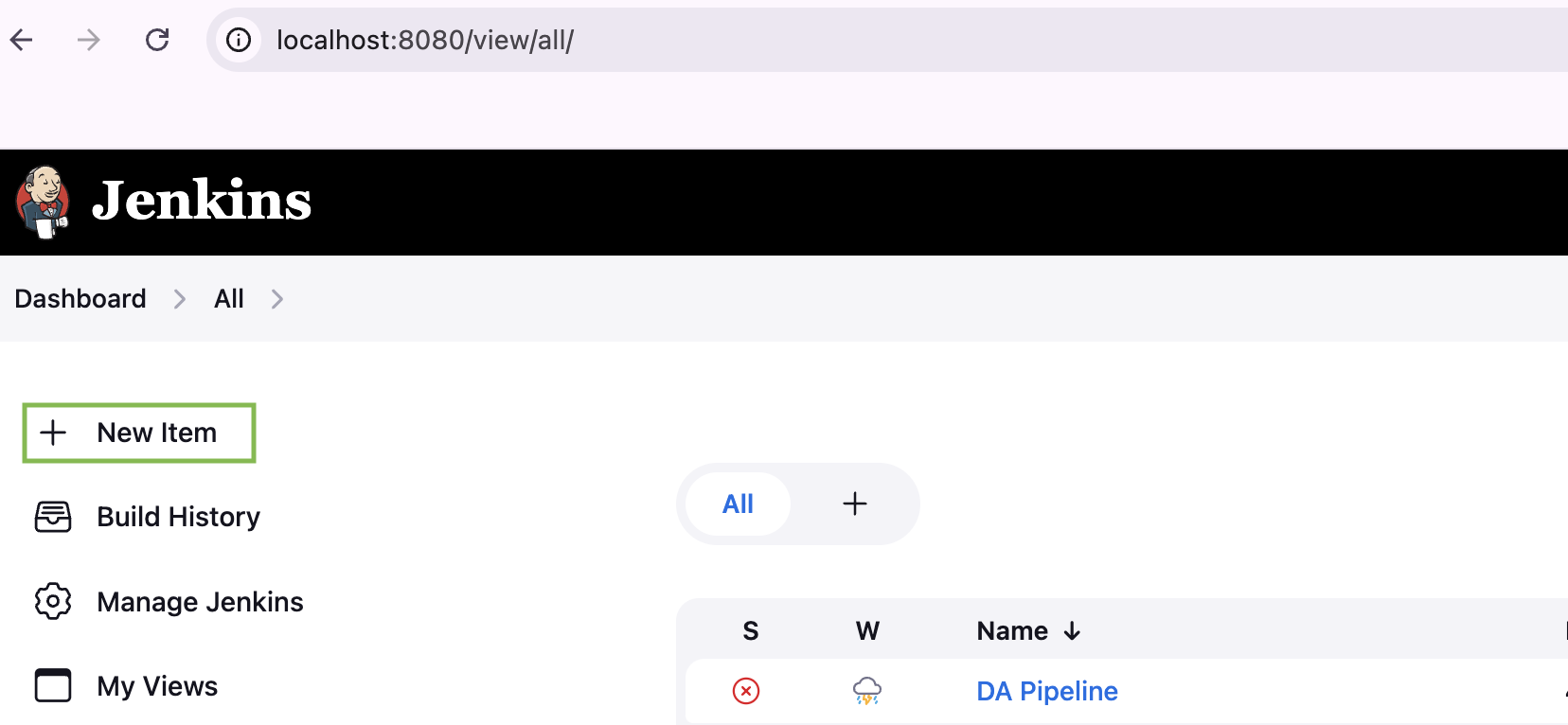
- Click New Item on the left menu in the Dashboard page.
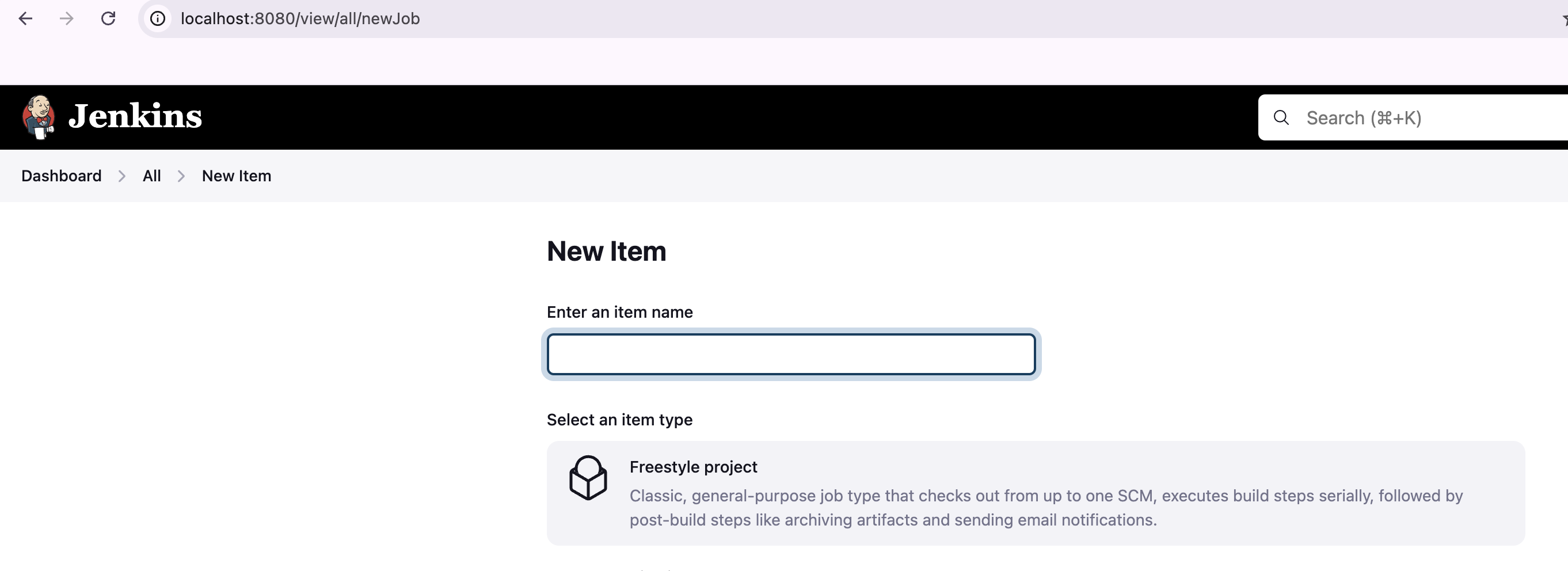
- Enter a name, select 'Freestyle Project' as the Project type and click on the 'Ok' button to create the project.
Configuring the Git RepositoryDirect link to Configuring the Git Repository
- Under "Source Code Management," choose "Git" as the type.
- Enter the URL of your Git repository e.g., https://github.com/devassure/automation-frameworks-integration.git.
- Specify the desired branch using the "Branch Specifier" field (e.g., */main).
Configuring the build stepDirect link to Configuring the build step
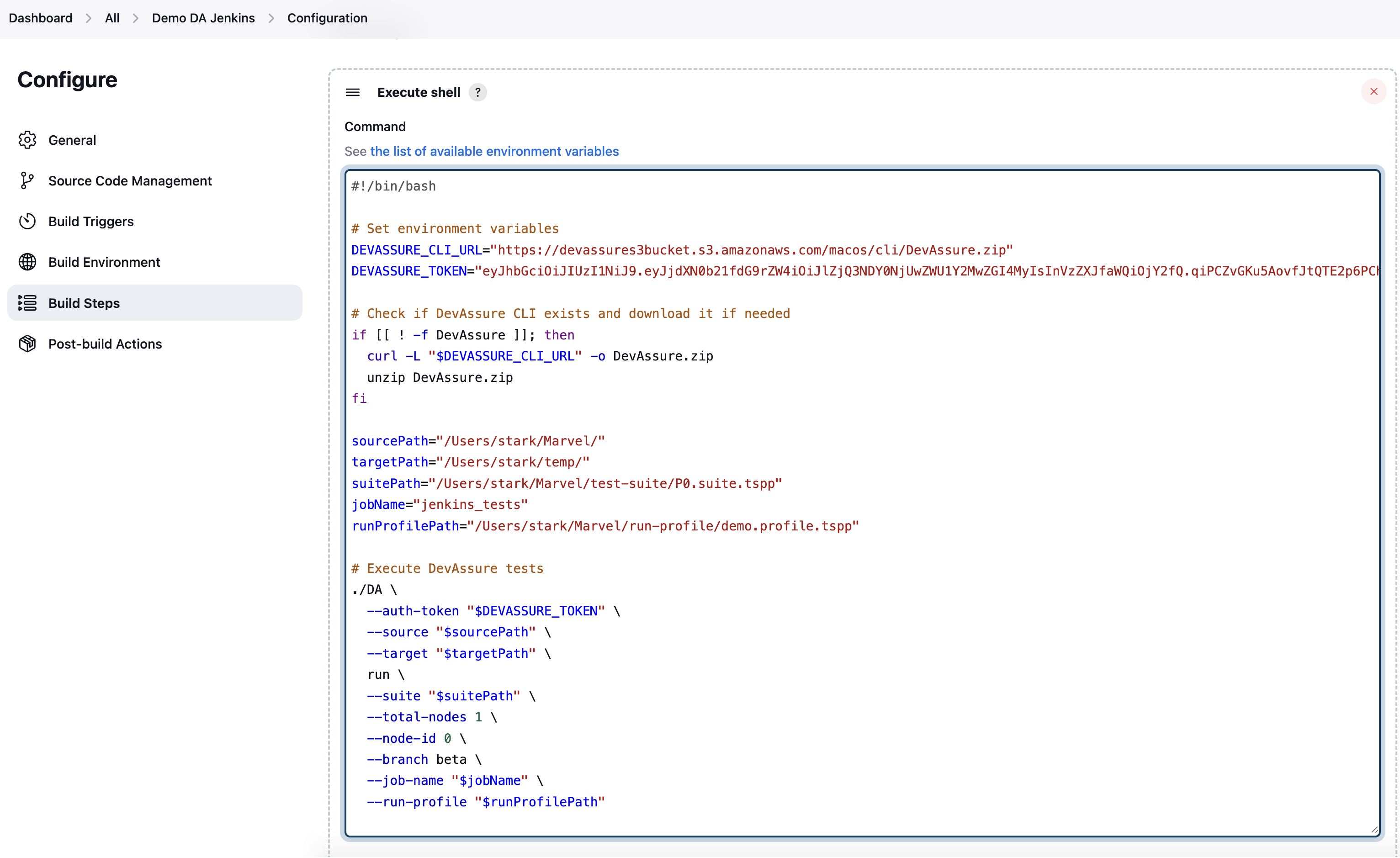
- In the "Build" section, click "Add build step" and choose "Execute shell".
- Paste the following script into the "Command" field of the Execute shell step
#!/bin/bash

# Set environment variables
DEVASSURE_CLI_URL="https://devassures3bucket.s3.amazonaws.com/macos/cli/DevAssure.zip" # Replace with your required OS
DEVASSURE_TOKEN="eyJhbGciOiJIUzI1NiJ9.eyJjdXN0b21fdG9rZWVzZXJfaWQiOjY2fQ."  # Replace with your actual token

# Check if DevAssure CLI exists and download it if needed
if [[ ! -f DevAssure ]]; then
  curl -L "$DEVASSURE_CLI_URL" -o DevAssure.zip
  unzip DevAssure.zip
fi

sourcePath="/Users/stark/Marvel/" # Update with your actual source path
targetPath="/Users/stark/temp/"    # Update with your  target path
suitePath="/Users/stark/Marvel/test-suite/P0.suite.tspp"  # Update with your test suite path
jobName="jenkins_tests"  #Update with your desired job name
runProfilePath="/Users/stark/Marvel/run-profile/demo.profile.tspp" #Update with your run profile path

# Execute DevAssure tests
./DA \
  --auth-token "$DEVASSURE_TOKEN" \
  --source "$sourcePath" \
  --target "$targetPath" \
  run \
  --suite "$suitePath" \
  --total-nodes 1 \
  --node-id 0 \
  --branch beta \
  --job-name "$jobName" \
  --run-profile "$runProfilePath"
info
We suggest you get help from your Ops team in configuring the Build Pipeline if you are trying it for the first time.
Running the jobDirect link to Running the job
- Once you've saved the job configuration, click "Build Now" on the left-hand panel.
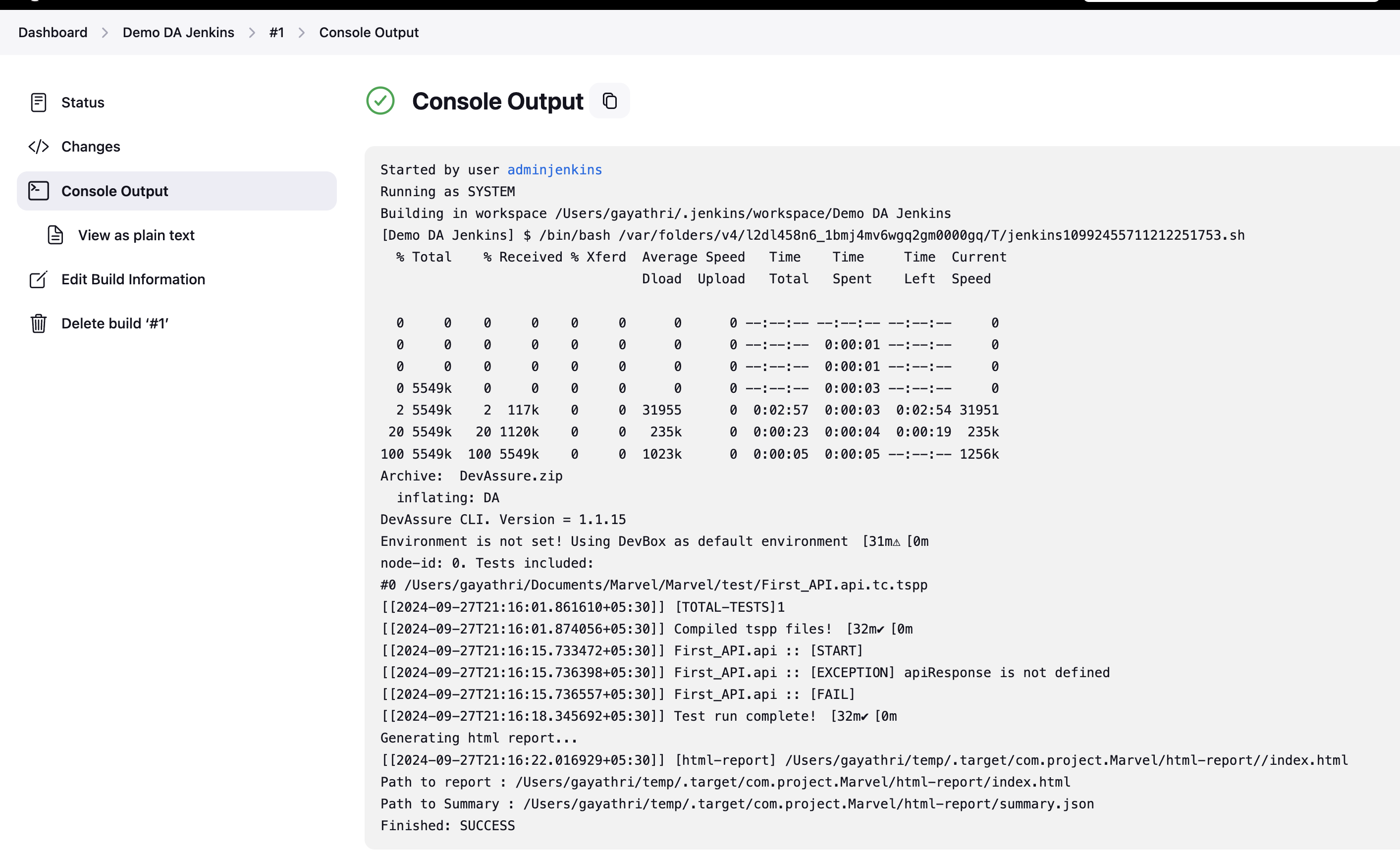
- Upon job completion, the script execution details should be visible in the "Console Output" page.
- If the test execution and DevAssure CLI configuration were successful, you should see test results were submitted to your DevAssure instance.
- You can view the reults under the Reports section of your instance in the DevAssure web app.