Reliable Flutter Web Automation Without Image-Based Hacks

Short answer
Flutter web often paints the UI on a canvas, so Selenium and Playwright cannot see buttons or inputs in the DOM. DevAssure O2 unlocks the Flutter DOM via the accessibility tree and uses visual reasoning on the canvas when the DOM is not exposed — enabling scriptless automation where traditional tools fail.
Automating Flutter Web applications is no easy feat — especially when you're trying to use traditional tools like Selenium or Playwright. While many articles introduce the importance of testing Flutter Web, they often fall short of answering the core question:
How do you actually perform reliable, scalable test automation for Flutter Web applications?
DevAssure O2 answers that question with a hybrid approach: unlock the Flutter DOM when semantics are available, and apply visual reasoning on the canvas when they are not. For a full walkthrough of every testing option — integration tests, dev hooks, coordinates, and agent-based E2E — see our guide on Flutter web apps and E2E testing when the DOM is just canvas.
Why Is Flutter Web Test Automation So Hard?Direct link to Why Is Flutter Web Test Automation So Hard?
Flutter is an open-source UI software development kit created by Google. It is used to develop cross-platform applications for Android, iOS, Linux, Mac, Windows, Google Fuchsia, and the web from a single codebase.
When a web application is built using Flutter, Flutter owns the rendering pipeline. The UI is described using Flutter widgets, then rendered into the browser using one of its web renderers:
- CanvasKit renderer — renders to WebGL/canvas (most common in production)
- skwasm renderer — newer WebAssembly-based renderer, also canvas-based
- HTML renderer — legacy approach; largely replaced by CanvasKit/skwasm
Here's the catch:
For many production Flutter web apps using CanvasKit or skwasm, the entire UI is drawn inside a <canvas> element. That means there's no usable HTML DOM structure for testing tools to latch onto.
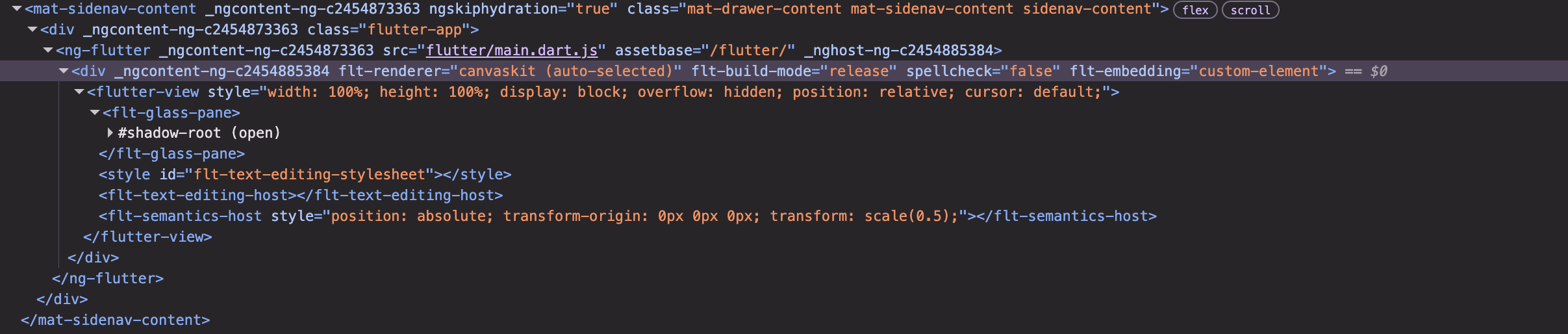
Instead of normal HTML elements, the DOM may look like this:
<flt-glass-pane>
  <flt-scene-host>
    <flt-semantics-host></flt-semantics-host>
    <canvas></canvas>
  </flt-scene-host>
</flt-glass-pane>
The <flt-semantics-host> element holds Flutter's accessibility tree — a semantic layer that maps widgets to labels and roles. This tree is invisible to standard Selenium and Playwright, but it is the layer that DevAssure O2 unlocks for element-level automation on Flutter web apps.
Why Selenium and Playwright Fall Short for Flutter WebDirect link to Why Selenium and Playwright Fall Short for Flutter Web
The elements in a Flutter web app are rendered within the canvas, making it difficult to access individual HTML components. Selenium and Playwright depend on UI elements being present and rendered in the DOM, as they use browser drivers to interact with and perform actions on those elements.
Traditional tools can't "see" the buttons, inputs, or text fields in Flutter apps.
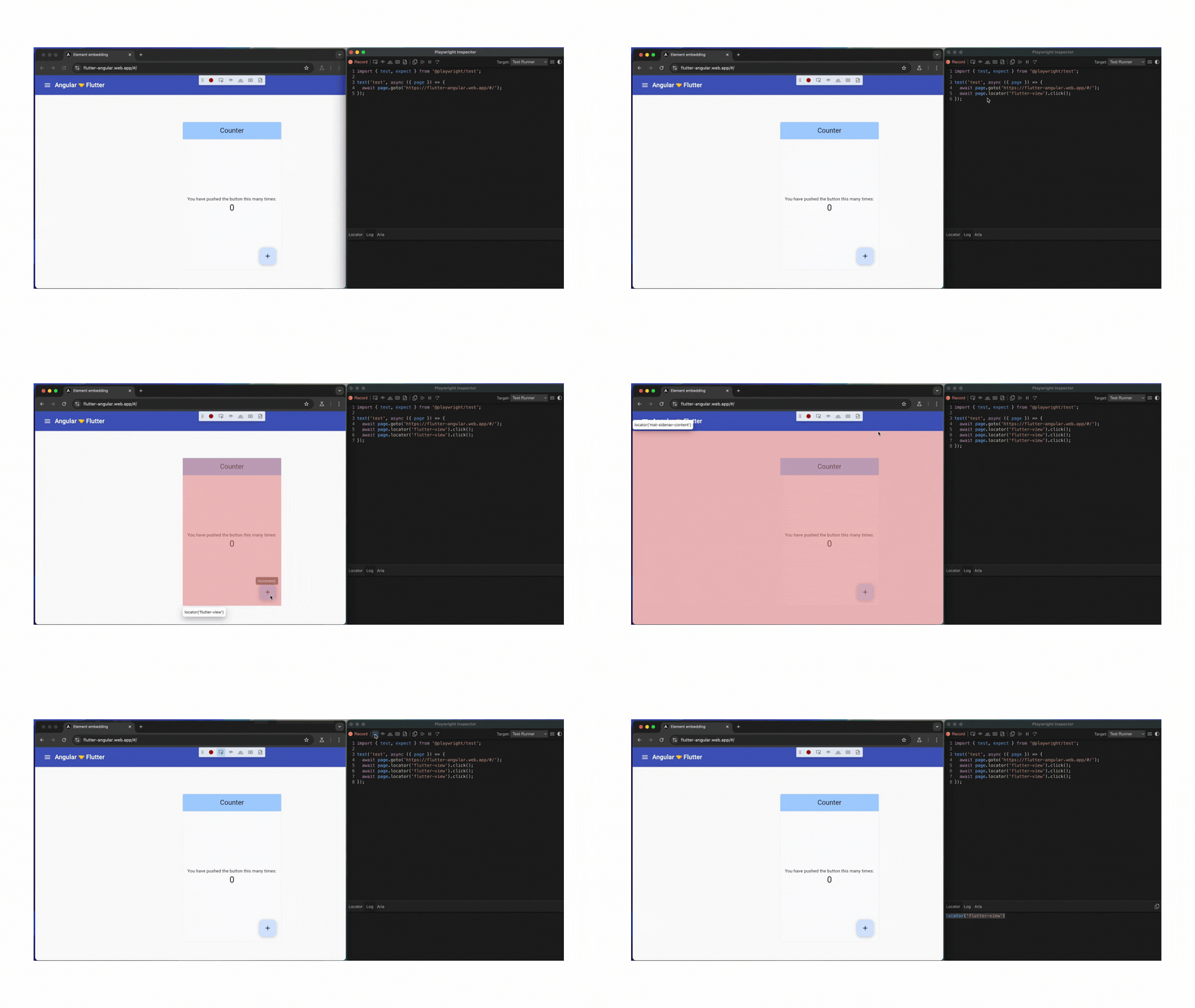
Take this example app: https://flutter-angular.web.app/#/
When recording a test using Playwright's recorder, you'll notice:
- All actions point to the canvas, not individual UI elements
- The test script doesn't capture the UI semantics
- Assertions become almost impossible without image workarounds
Selectors like these often fail on canvas-rendered login pages:
// These often fail — labels and buttons may not exist in the DOM
await page.getByLabel('Email').fill('user@example.com');
await page.getByRole('button', { name: 'Login' }).click();
Many articles and blogs suggest using image-based automation for Flutter web applications — but is this scalable?
What Is Image-Based Automation?Direct link to What Is Image-Based Automation?
Image-based test automation is an automation technique where:
- the tool takes screenshots of the application,
- identifies components in the image,
- computes the coordinates of these components,
- performs clicks and other actions on the application based on these coordinates.
What Are the Disadvantages of Image-Based Automation?Direct link to What Are the Disadvantages of Image-Based Automation?
- Coordinate-based clicks are flaky across screen sizes
- Cross-browser testing becomes unreliable
- Slow execution due to image processing overhead
- Hard to debug failures, especially with dynamic content
- Expensive compute cost with large-scale test suites
This is different from DevAssure O2's visual reasoning, which understands UI elements by their appearance and context — "the email input below the logo" or "the blue Login button" — and adapts when layout shifts, rather than clicking fixed x/y coordinates.
A Better Way to Automate Flutter Web: DevAssure O2Direct link to A Better Way to Automate Flutter Web: DevAssure O2
DevAssure O2 tests web applications using natural language instructions, browser interaction, and adaptive validation. For Flutter web apps, the agent solves the canvas problem through two complementary capabilities.
Unlocking the Flutter DOMDirect link to Unlocking the Flutter DOM
Flutter web apps expose a hidden accessibility tree via <flt-semantics-host> — a semantic layer that maps widgets to labels, roles, and interaction targets. Standard Selenium and Playwright cannot reliably traverse this tree, but DevAssure O2 can unlock the Flutter DOM through this accessibility interface.
When semantics are enabled in the app (via Semantics widgets or Flutter's built-in accessibility), the agent reads the Flutter DOM directly — finding buttons, text fields, and labels by their semantic properties rather than HTML tags.
Semantics(
  label: 'Login button',
  button: true,
  child: ElevatedButton(onPressed: login, child: const Text('Login')),
)
Adding semantic labels improves accessibility and gives DevAssure O2 stable DOM-level targets to interact with.
Visual Reasoning on the CanvasDirect link to Visual Reasoning on the Canvas
When the Flutter DOM is not exposed — for example, in pure CanvasKit rendering without semantics, or on screens where accessibility metadata is sparse — DevAssure O2 falls back to visual reasoning over the canvas. The agent captures screenshots, identifies UI elements by their visual appearance, and interacts with them the way a user would.
Together, DOM unlocking and canvas visual reasoning form a hybrid approach: use the Flutter accessibility tree when available for precise, stable interactions; use visual reasoning when the canvas is all the browser sees.
No brittle coordinate maps. No fragile Playwright scripts.
Example Test CaseDirect link to Example Test Case
name: Flutter Web Login Smoke Test
type: web
priority: P0
steps:
  - Open the application URL
  - Enter test-user@example.com in the email field
  - Enter Password@123 in the password field
  - Click the Login button
  - Verify that the Dashboard page is displayed
  - Verify that there are no blocking console errors
  - Verify that the login API returns success
Check out this video to see how seamless Flutter web automation is with DevAssure:
Why DevAssure O2 Works for Flutter WebDirect link to Why DevAssure O2 Works for Flutter Web
- Unlocks the Flutter DOM via the accessibility tree — element-level automation without custom test hooks
- Visual reasoning on the canvas when the DOM is not exposed — not brittle coordinate clicking
- Supports full-page flows without relying on fixed screenshot coordinates
- Validates business flows, captures screenshots, console errors, and network issues
- No Selenium or Playwright scripts to maintain
- Cross-browser compatible and scalable for large teams
Whether you're testing in India, the US, or globally, DevAssure O2 ensures consistent automation across platforms and geographies.
Comparison of Flutter Web E2E Testing OptionsDirect link to Comparison of Flutter Web E2E Testing Options
For integration tests, dev test hooks, coordinate fallbacks, and a recommended layered testing strategy, see the full guide: Flutter Web Apps and E2E Testing: What Works When the DOM Is Just Canvas.
Frequently Asked Questions (FAQs)Direct link to Frequently Asked Questions (FAQs)
Not reliably. Many Flutter web apps render the UI into a canvas (CanvasKit or skwasm) instead of exposing normal HTML elements. Selenium depends on DOM-based selectors, which are unavailable when controls are painted on canvas rather than represented as <button> or <input> tags.